How It Works
One connected workflow, from the map to the classroom.
Here’s what you do, what you get, and where it leads next. Every example below follows one 8th grade civics course.
A worked example
Follow one civics course from start to finish.
Pick a step to see what you do, what you get, and the real screen behind it.
Bring in the plan you already have.
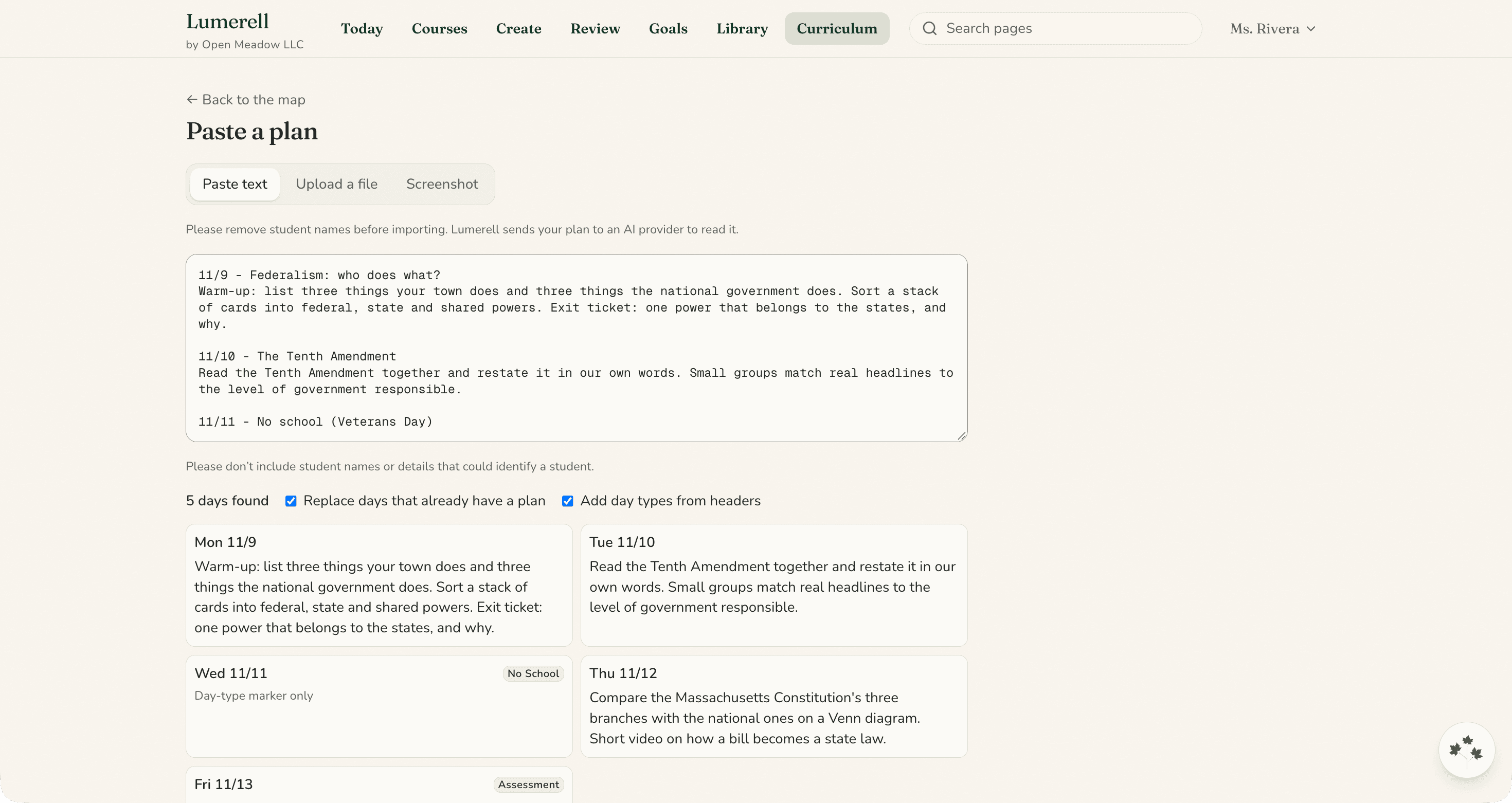
Paste a plan as text, upload PDFs or screenshots, or pick files from your Google Drive.
- You do
- Paste an existing unit plan.
- You get
- Draft days to review. Nothing is saved until you approve them.
School and District Visibility
Give leaders the view your district chooses.
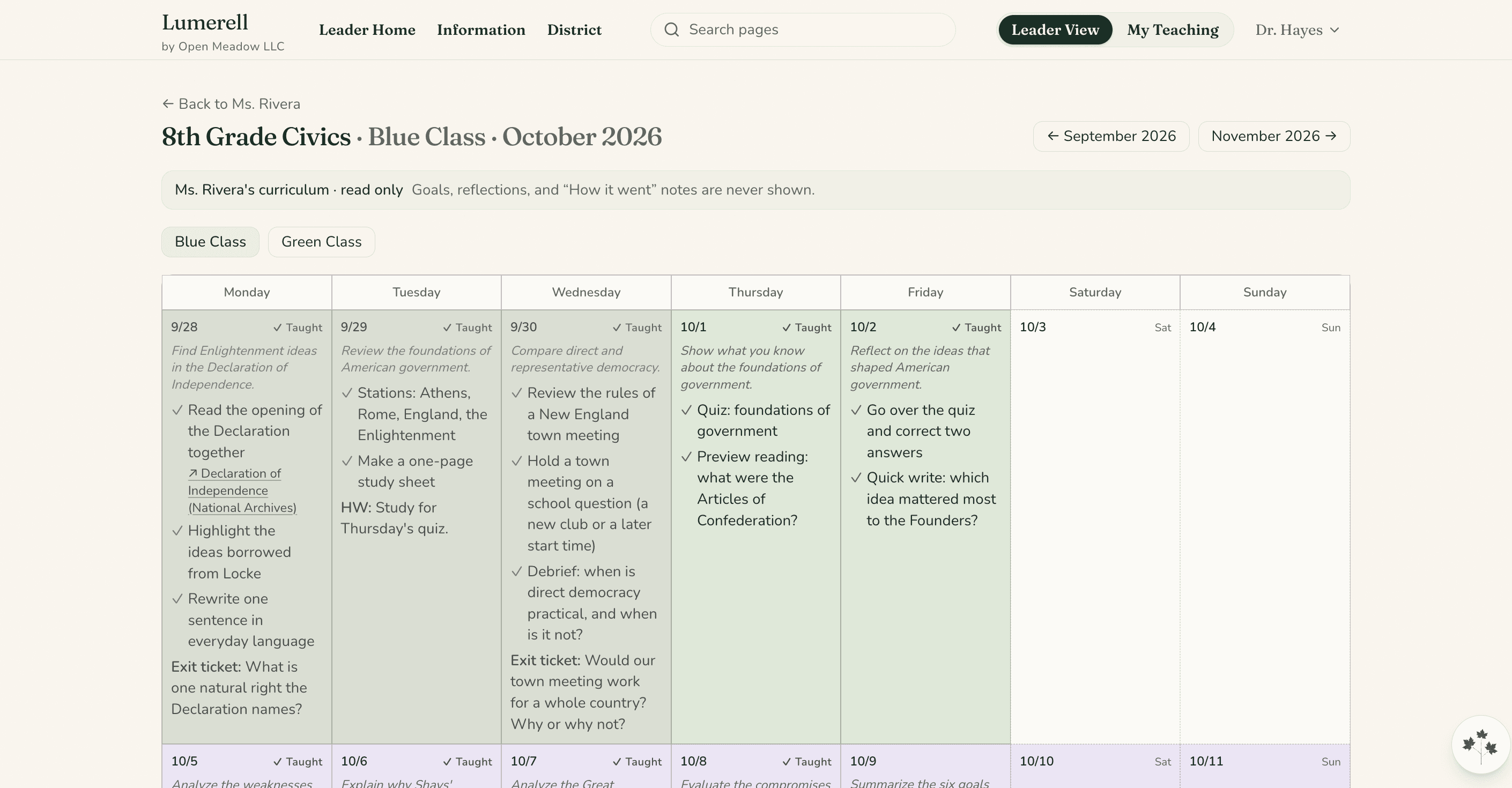
Leaders see the teachers they lead and, where chosen, read-only curriculum and usage totals.
- District does
- Chooses the leader view; a district leader turns it on.
- Leaders get
- Read-only curriculum and counts-only totals, never per teacher.
- Next
- Talk with us about what fits your schools.
Imports, exports, and sign-in
Exactly what connects to what.
Signing in with Google, or picking a file from Drive, is not the same as a Google Classroom integration. Here is precisely what Lumerell does today.
Sign in
With a Google account or an emailed sign-in link.
Bring plans in
Paste text; upload PDFs or images; or pick Google Docs, Slides, Sheets, Word, PowerPoint, Excel, PDF, or image files from Google Drive.
Take work out
Download Word (.docx) or PowerPoint (.pptx) files, save to Google Docs or Google Slides, or print and save as PDF from your browser.
Google Calendar
You can import school-calendar days from Google Calendar.
Not connected
Lumerell does not connect to Google Classroom or to student information systems.
See it for yourself
Let’s walk through Lumerell together.
Tell us a little about your classroom, school, or district, and we’ll show you how Lumerell fits the way you already plan.