For Teachers
Help with the whole teaching week, not just one more task.
Lumerell starts from the curriculum you already teach. It helps you see what’s coming, prepare what you need, and look at your plans with fresh eyes, while every decision stays yours.
Start with what you have
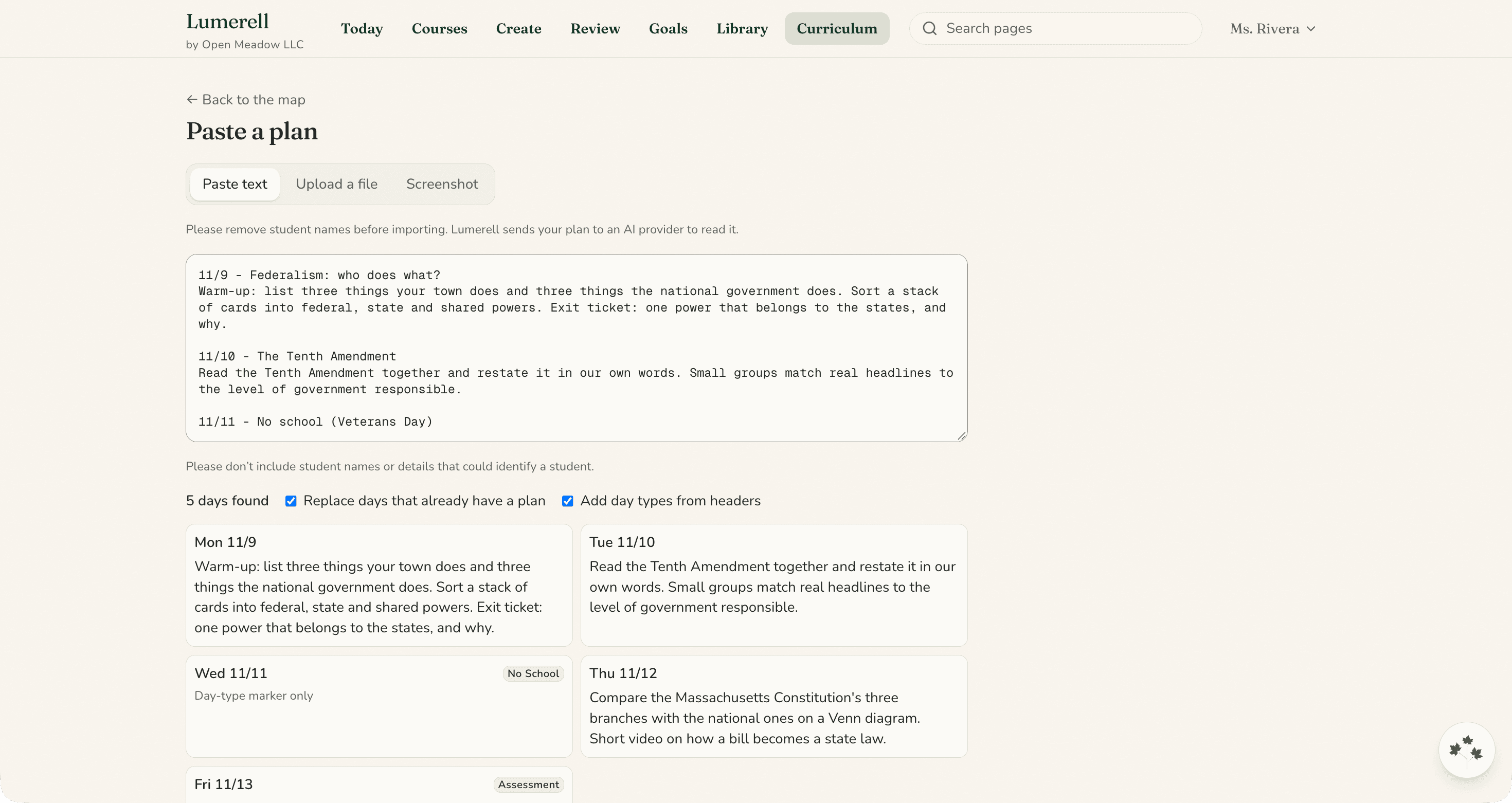
Bring in your curriculum and existing materials.
Paste a plan as text, upload PDFs or screenshots, or pick files from your Google Drive, including Google Docs, Slides, and Sheets, and Word, PowerPoint, and Excel files. Lumerell turns them into draft days, and you approve them before anything is saved.
See what’s coming
Your year, a month at a time.
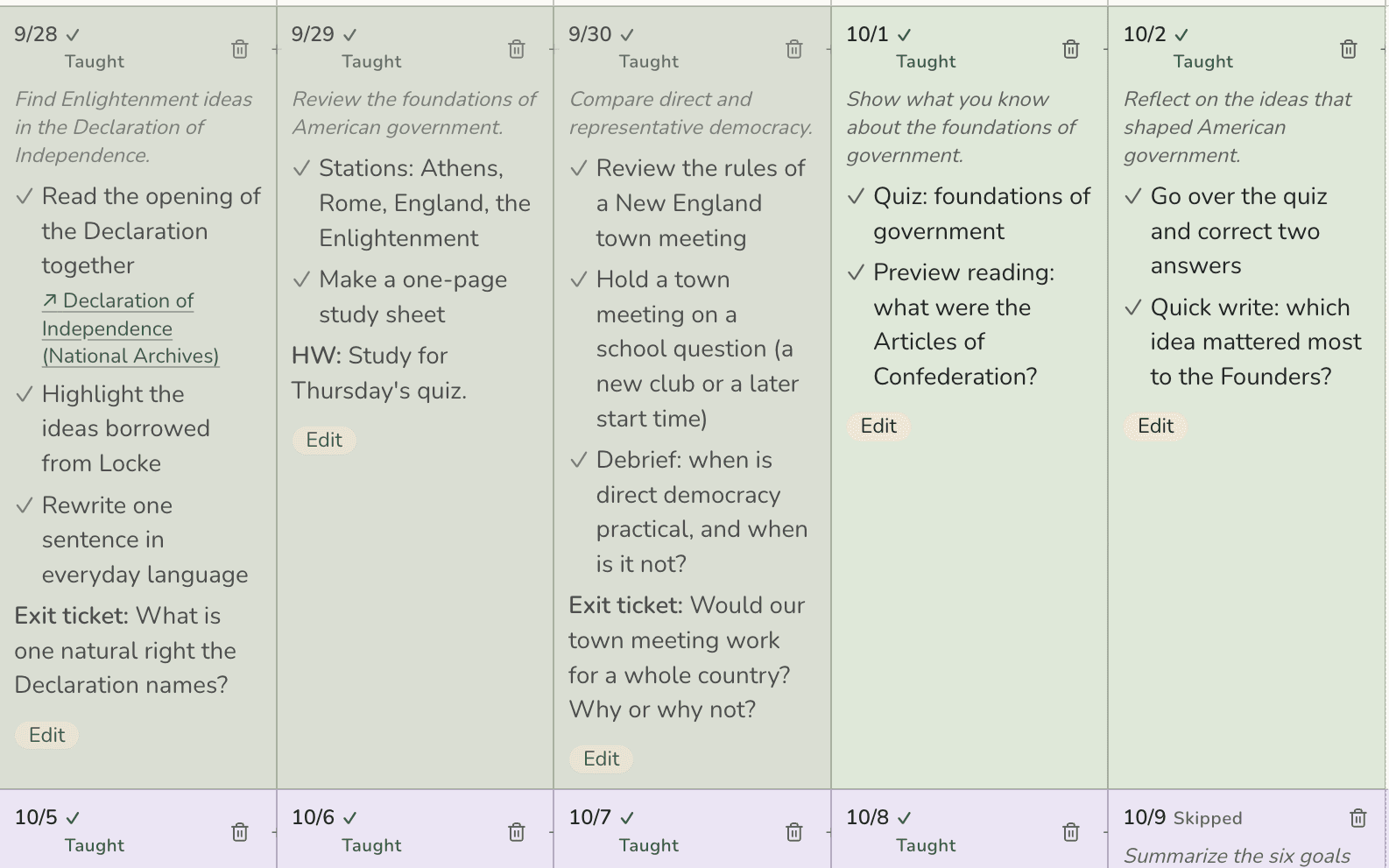
Each course has a month-by-month map of school days. Open a day to see or write its lesson, and mark it taught or skipped as the week goes.
Plan this week lets you describe the week in a sentence, typed or spoken, and Lumerell fills in the days.
- Undo for 72 hours, from one edited day to a whole planned week
- Plan by voice when typing isn’t convenient
- Make substitute plans from the lessons already on your map
After the lesson
It asks how it went, so you don’t have to remember to.
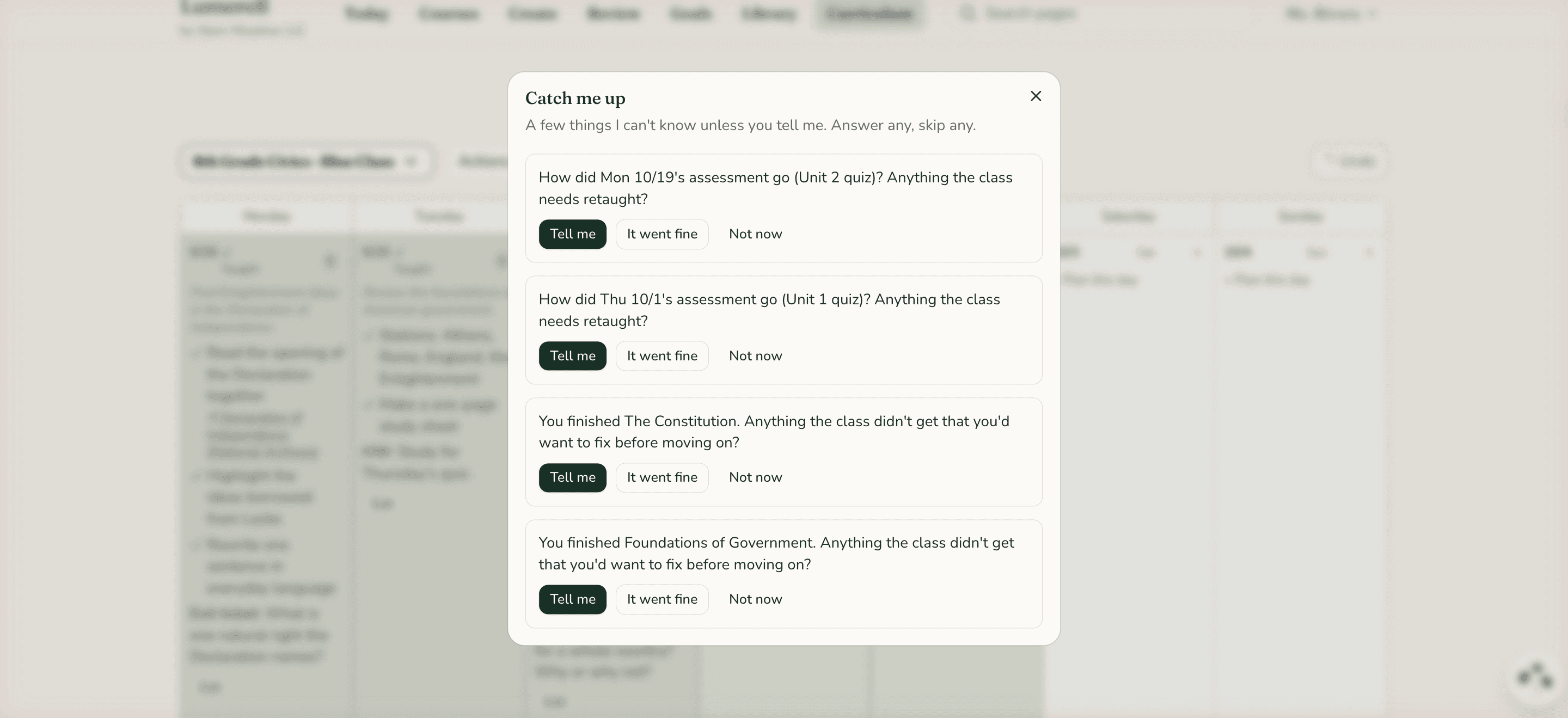
Mark each day taught or skipped as the week goes. Then Catch me up asks up to four quick questions Lumerell can’t answer on its own, like how a quiz went or whether a finished unit left anything to fix. Answer any, skip any.
If something needs work, Lumerell offers a next step (a reteach day, a review, a worksheet or exit ticket, or a small group), and nothing happens until you click it.
Meet Lumi
Ask for it the way you’d say it.
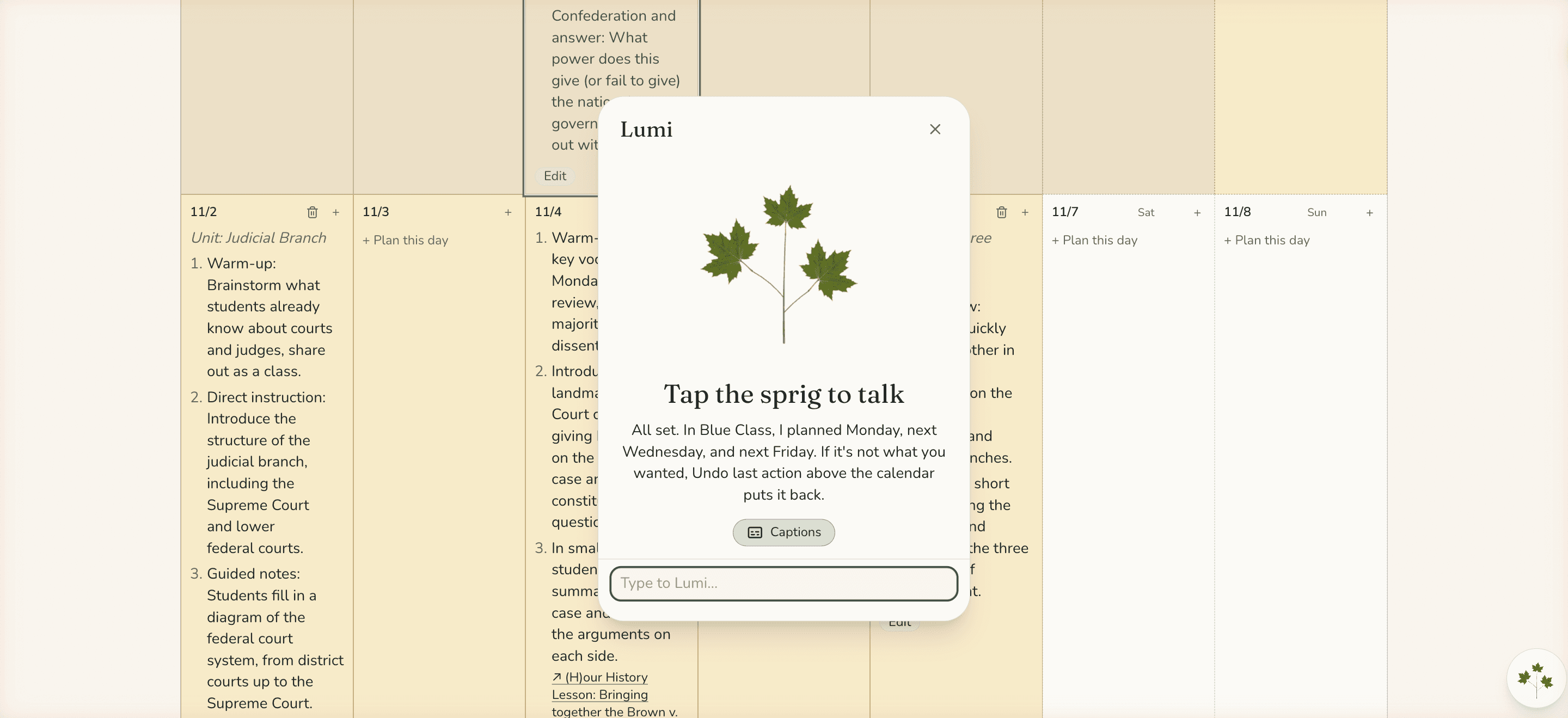
Lumi is the helper in the corner of every page. Type or say what you need, like “Plan the week of November 2nd” or “Make question 3 easier”, and Lumi does it on your map or in the worksheet you have open. Lumi can also answer questions about your plans, like what’s coming up next week, and can reply out loud, too.
- Changes happen right away, and Undo puts them back: map changes for 72 hours, worksheet edits with the editor’s Undo
- Lumi can’t delete your courses or materials, share your work, or change your settings—you stay in control
- Remember, if you don’t have access to Lumi, reach out to your district, as they may have turned it off
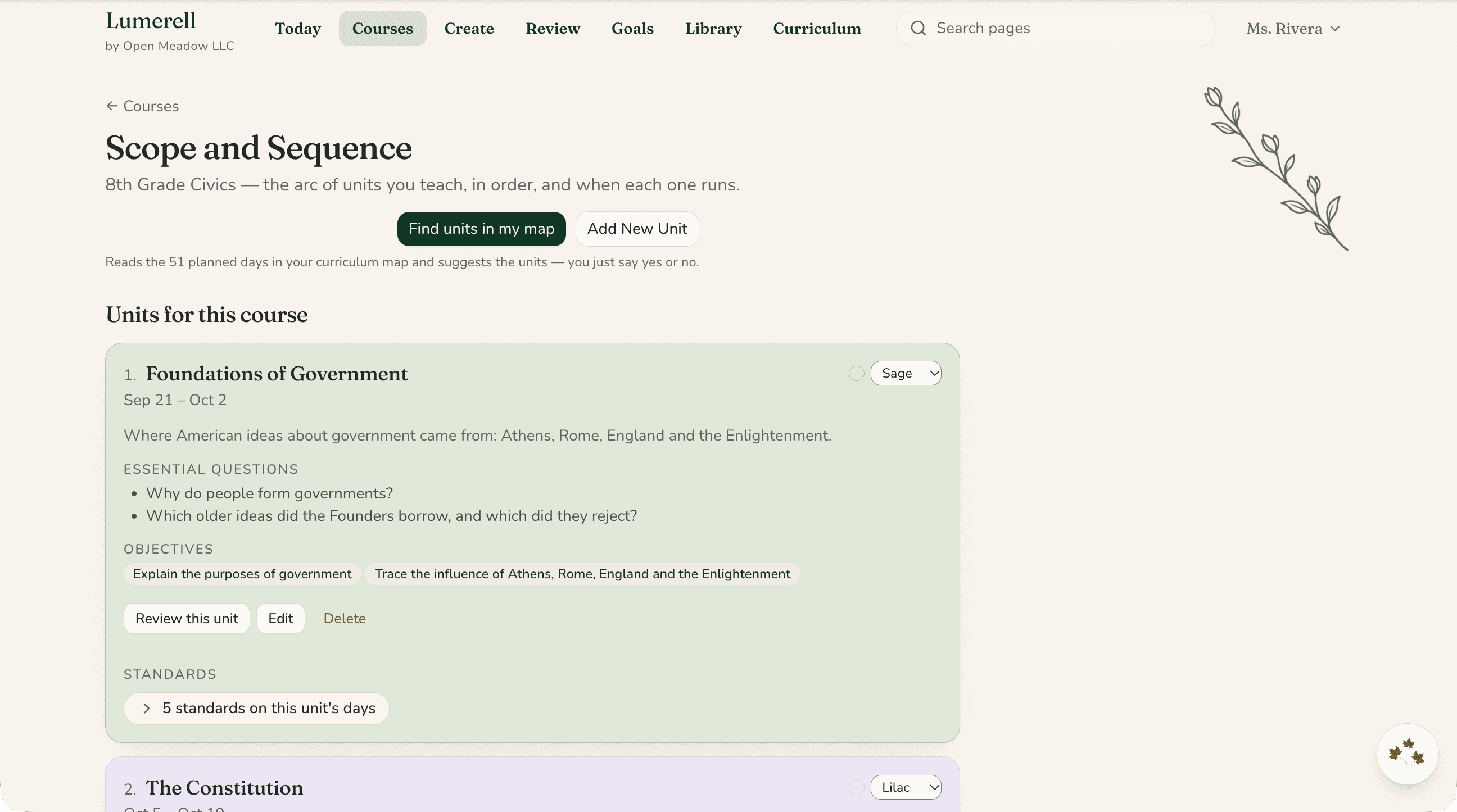
Scope and Sequence
Your course, unit by unit.
See a course’s units in order, with their dates, essential questions, and objectives, and add or edit them in one place.
Already planned your days? Lumerell can read your map and suggest the units. Nothing is saved until you add them.
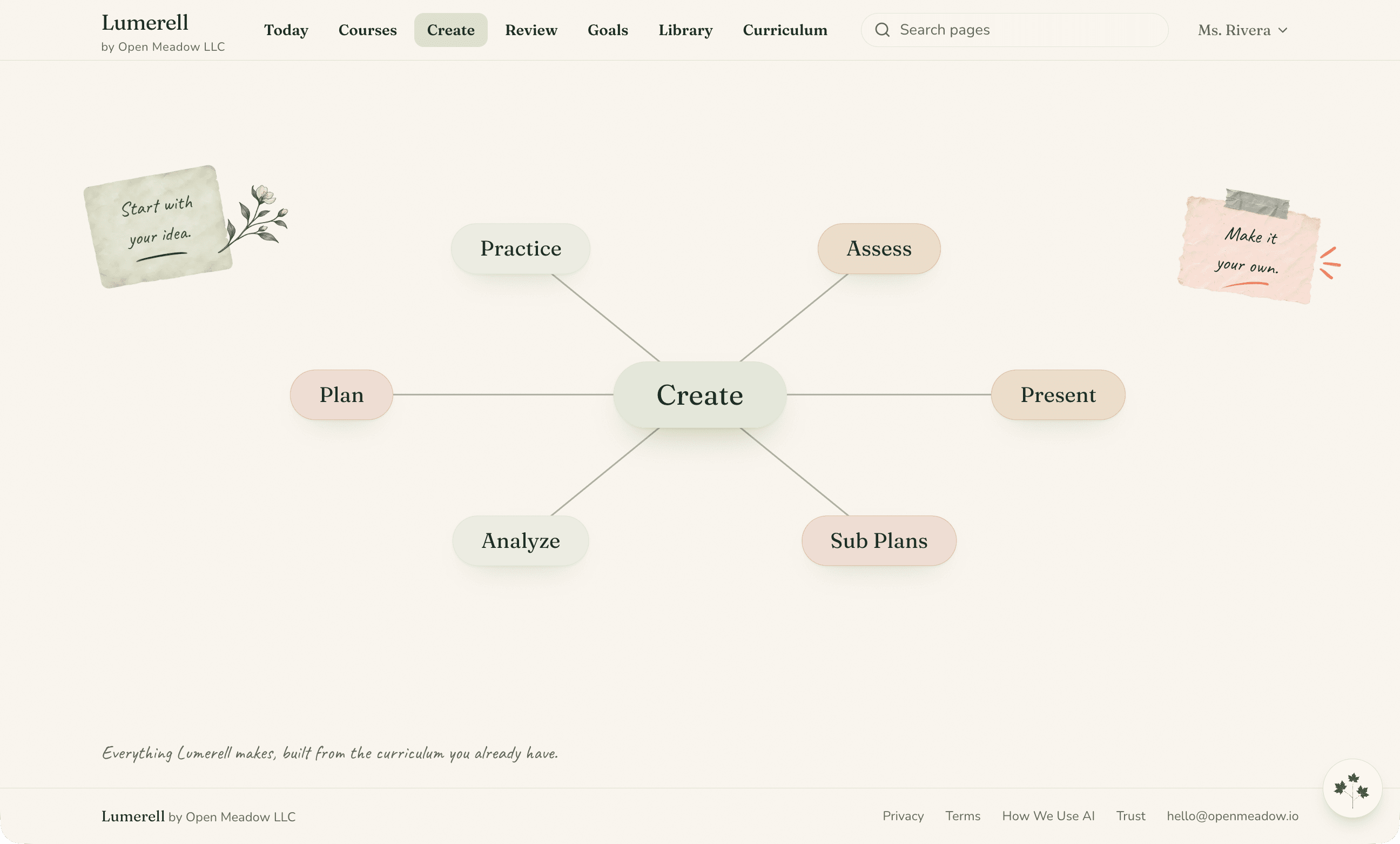
Prepare
Make materials from the lesson you planned.
Choose what you need: worksheets, bell ringers, exit tickets, vocabulary, review games, assessments, rubrics, projects, labs, station rotations, choice boards, presentations, and more. Lumerell drafts it from your lesson, and you edit it like any document.
- Download as Word or PowerPoint, or save to Google Docs or Google Slides
- Present slides full-screen, right from Lumerell
- Print, or save as PDF from your browser
- Translate a material into 15 languages, including Spanish, Portuguese, Haitian Creole, Chinese, and Arabic, as a new copy beside your original
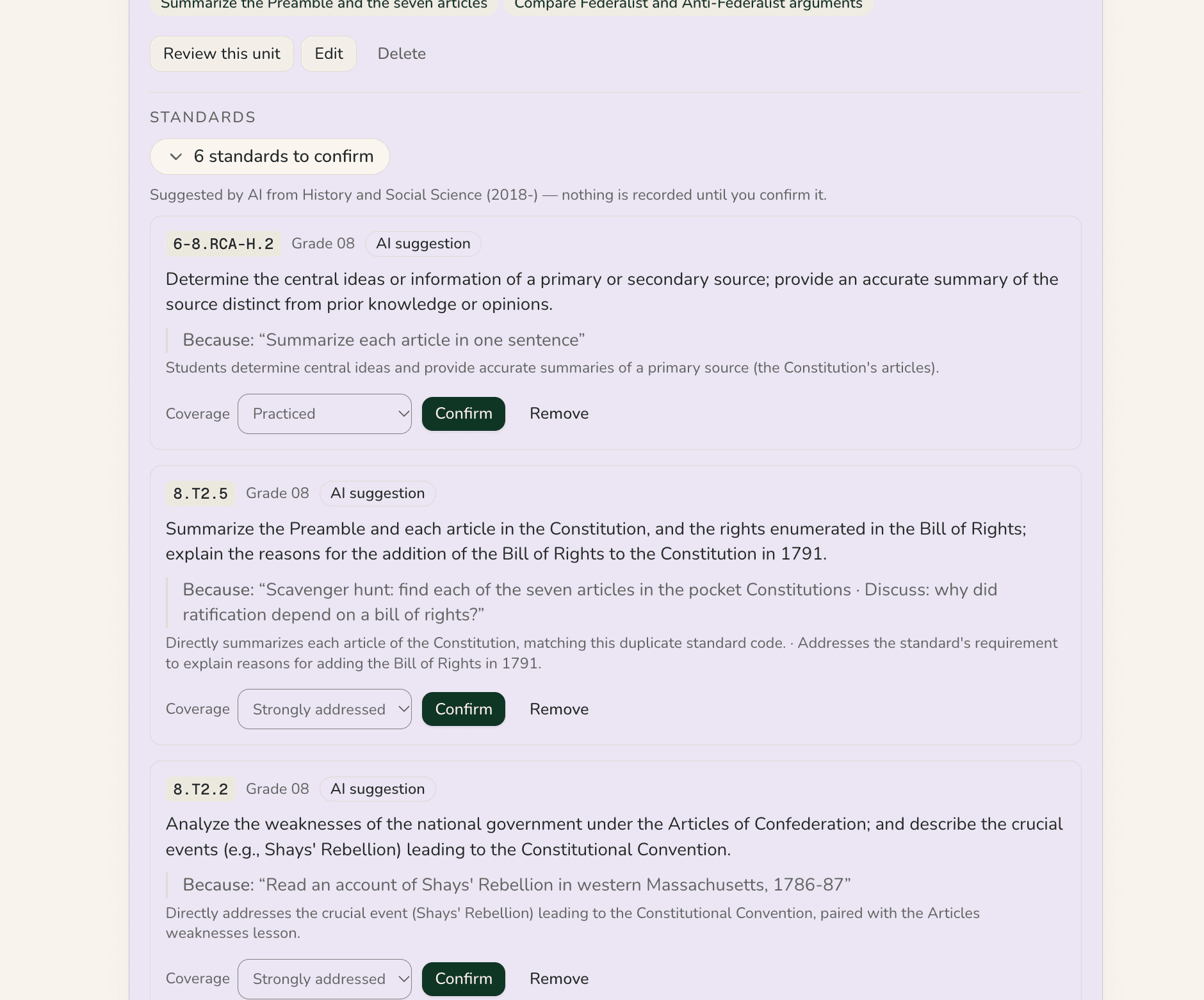
Adapt and review
Fresh eyes, with your professional judgment.
Review a unit through an Inclusion, Modalities, Social and Emotional Learning, or Standards lens. Lumerell explains what it noticed and makes suggestions. You decide what to use.
Inclusion and Modalities reviews work on a single lesson or material, too.
Standards come from published Massachusetts and New Hampshire frameworks, not invented by the software.
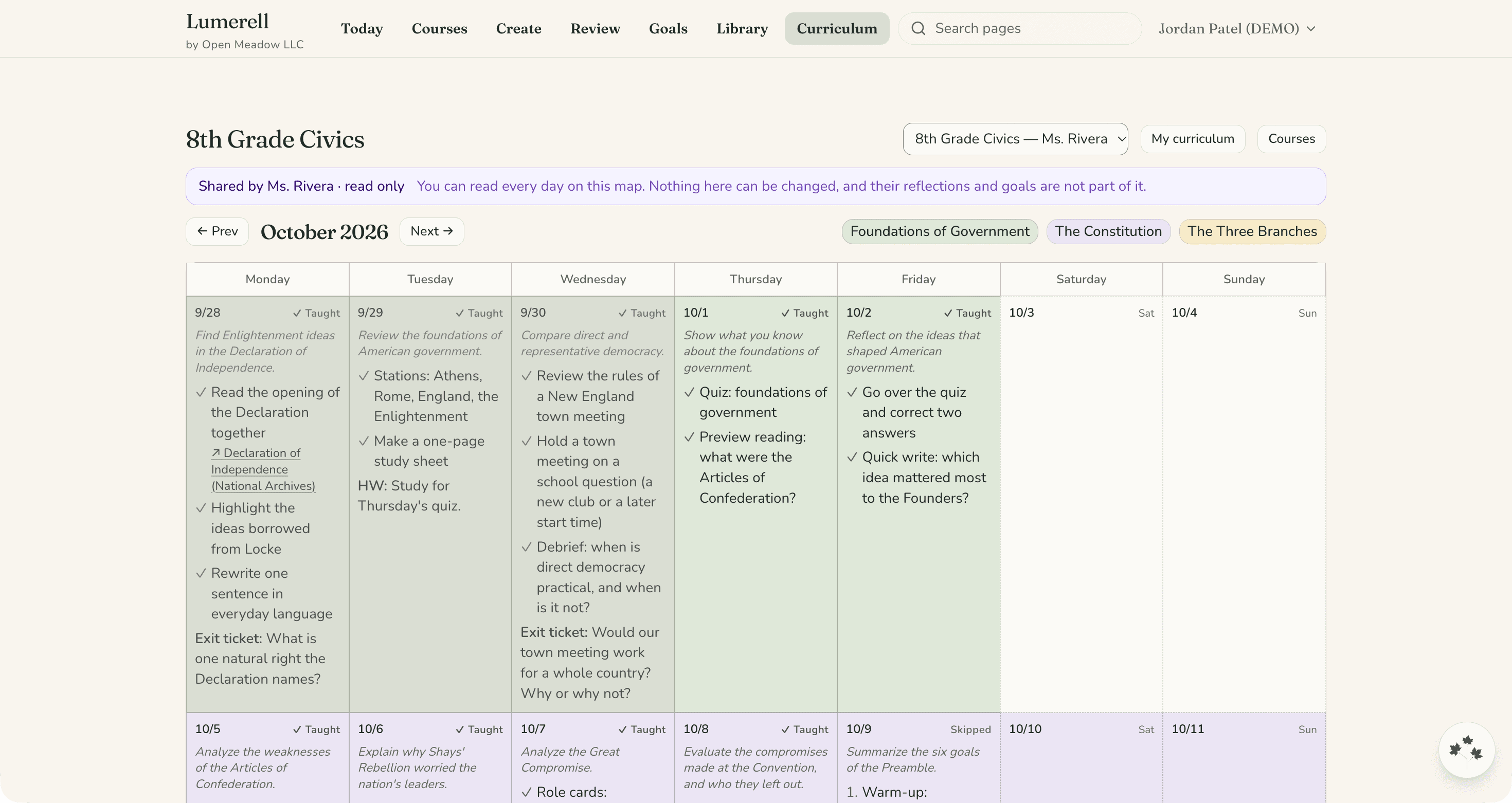
Collaborate and reflect
Share plans, keep reflections private.
Share a course map or a material with a colleague or your whole district. They can copy it into their own plans, and, for a course map, edit the shared days with you if you allow it. You can stop sharing at any time.
Your goals, reflections, and “How it went” notes stay yours. They never travel with a shared map, and leaders never see what they say.
Around the week
Small things that save real time.
Map
Weekly view
Switch a course map from the whole month to a single week when you want a closer look at the days ahead.
Slides
Present from Lumerell
Show slides full-screen in class, or download them as a matching PowerPoint.
Calendar
Your school calendar
Bring in your school-calendar days from Google Calendar. Lumerell reads it but never changes it.
Questions
Questions teachers ask.
Can I bring my existing curriculum and materials?
Yes. You can paste a plan as text, upload PDFs or images, or pick files from Google Drive, including Google Docs, Slides, and Sheets, and Word, PowerPoint, and Excel files. Lumerell turns them into draft days, and you approve them before they’re saved.
What can I edit and control?
Everything. Drafts are yours to keep, change, or discard. Imports and review suggestions wait for your OK, and when you ask Lumerell to plan your week, you can undo the whole change in one step.
Changes on your map, from editing one day to planning a whole week, can be undone for 72 hours.
Do I need to learn prompting?
No. You start from your own lessons and choose what to make from a list. Where you can describe what you want, plain sentences work, typed or spoken.
What can my administrator see?
By default, leaders see a list of the teachers they lead (name, email, school, role, and join date), not your work. If your district chose the leader view, a district leader turned it on, and you’ve clicked “Got it” on a notice and haven’t turned it off, your school’s or district’s leaders can read (never change) your courses, units, lessons, calendar, and materials. District leaders can read curriculum for every school in the district.
Leaders never see the contents of your goals, reflections, “How it went” notes, sub plans, or review results. Read the Privacy Policy for the details.
How do I get access if my district isn’t signed up?
Right now Lumerell is open to schools and districts working with Open Meadow. If yours isn’t yet, email us and tell us where you teach.
Does this require student accounts or student information?
No. Lumerell is for planning and doesn’t need student records or student accounts.
Because you can type, speak, and upload files, please leave out student names and details that could identify a student. Lumerell warns you when it spots what looks like student details in text you type or import, but it can’t catch everything or check inside every file.
Bring Lumerell to your school
Want Lumerell at your school? Start with one email.
Lumerell is open to schools and districts that work with Open Meadow, so your administrator is the person to ask.
If it helps, How It Works shows the whole workflow in five steps, and Privacy & Trust covers what leaders can and can’t see.
See it for yourself
See it with a week of your own planning in mind.
Tell us a little about your classroom, school, or district, and we’ll show you how Lumerell fits the way you already plan.